Guide
Sections

At the core of every preset, the Emulation defines the colour and tone for your photographs.
There are 17 emulations to choose from, ranging from natural styles, to filmic simulations, all the way up to more stylistic effects.
A retro look with saturated green tinted tones. A mix of Tone & Quality settings were used on these photos.
Intense pinks and reds for stunning sunsets and sunrises. A mix of Tone & Quality settings were used on these photos.
A low contrast look with warm saturated colours. A mix of Tone & Quality settings were used on these photos.
Bright summery colours, with intense blues and oranges. A mix of Tone & Quality settings were used on these photos.
Vibrant and punchy colours with a purple tint. A mix of Tone & Quality settings were used on these photos.
Intense orange-teal contrast, for a cinematic look. A mix of Tone & Quality settings were used on these photos.
Warm, golden hues ideal for bright, sunny days. A mix of Tone & Quality settings were used on these photos.
Balanced monochrome for classic black and white photography. A mix of Tone & Quality settings were used on these photos.
Dramatic monochrome, sensitive to cooler tones. A mix of Tone & Quality settings were used on these photos.
Cool, muted tones ideal for urban or rocky landscapes. A mix of Tone & Quality settings were used on these photos.
Soft pastel colours with warm skin tones. A mix of Tone & Quality settings were used on these photos.
Muted, natural tones with a bluish green tint. A mix of Tone & Quality settings were used on these photos.
Vibrant greens and blues enhancing natural landscapes. A mix of Tone & Quality settings were used on these photos.
High contrast cool tones ideal for night photography. A mix of Tone & Quality settings were used on these photos.
The Quality setting adjusts the strength of filmic artifacts like grain and halation.
DIGI gives you a clean photo with natural sharpness. Settings 100 - 400 add subtle and natural grain. 800 or higher delivers heavy grain with lots of bloom, halation and other filmic effects.
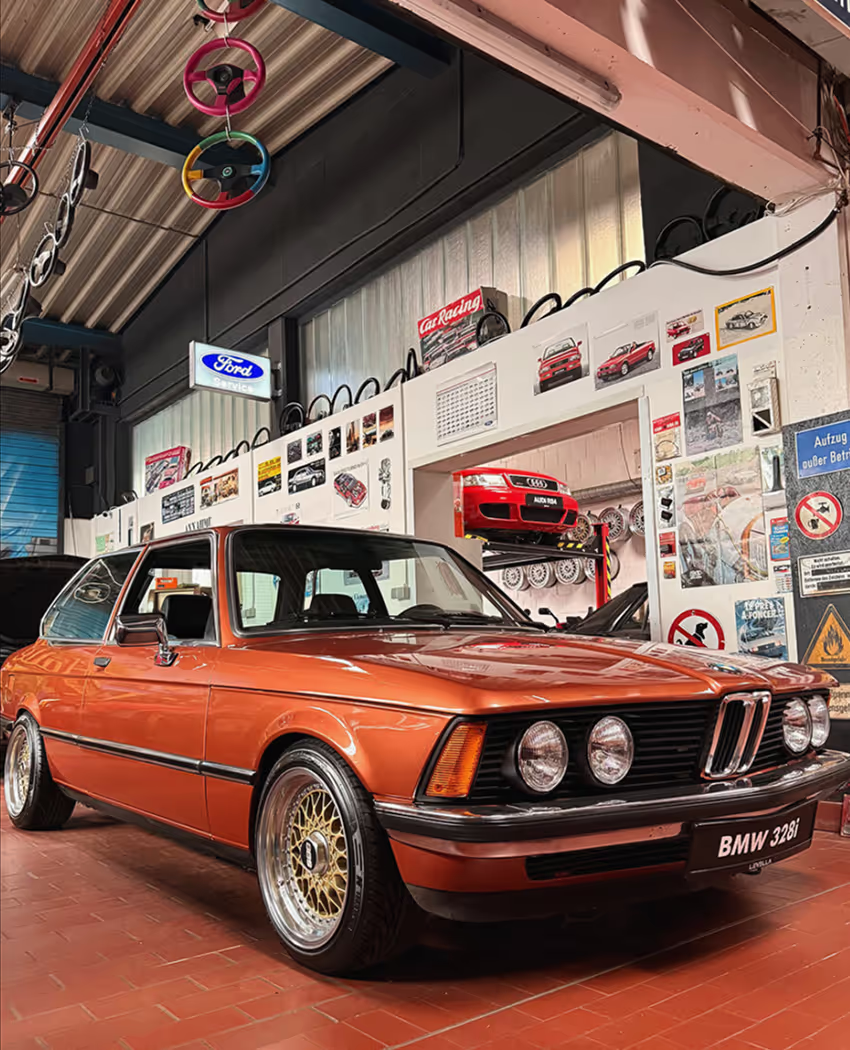
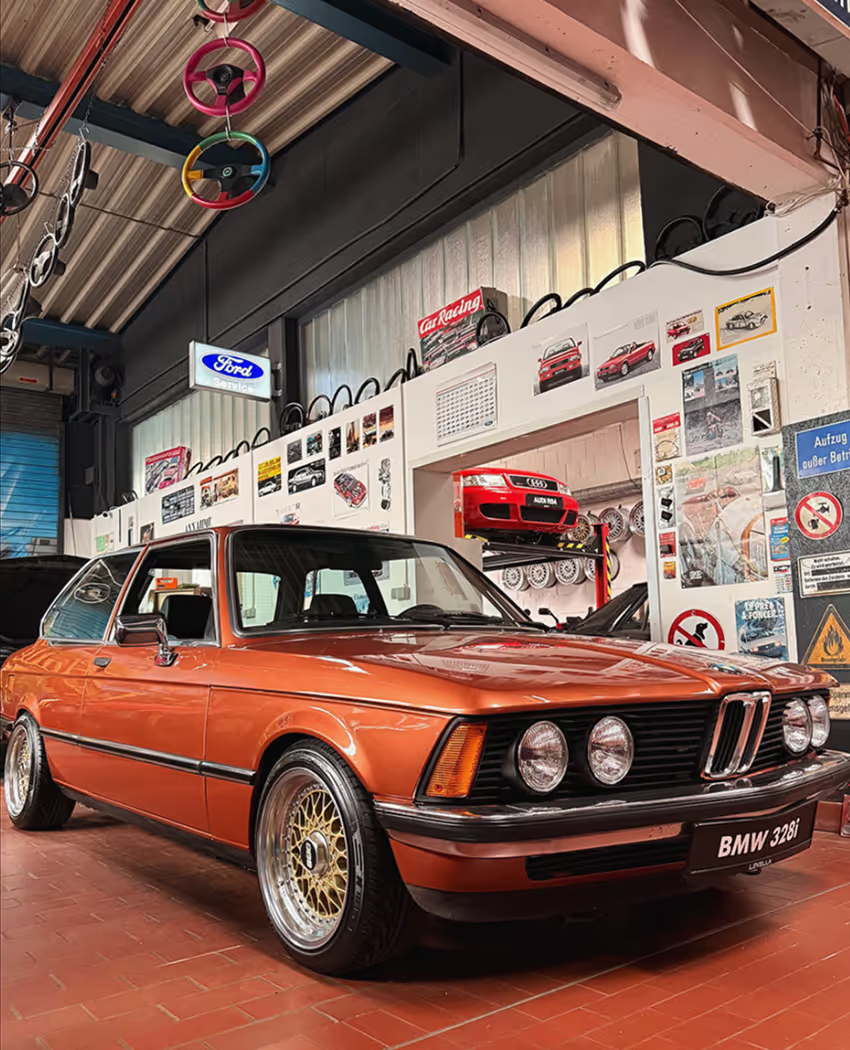
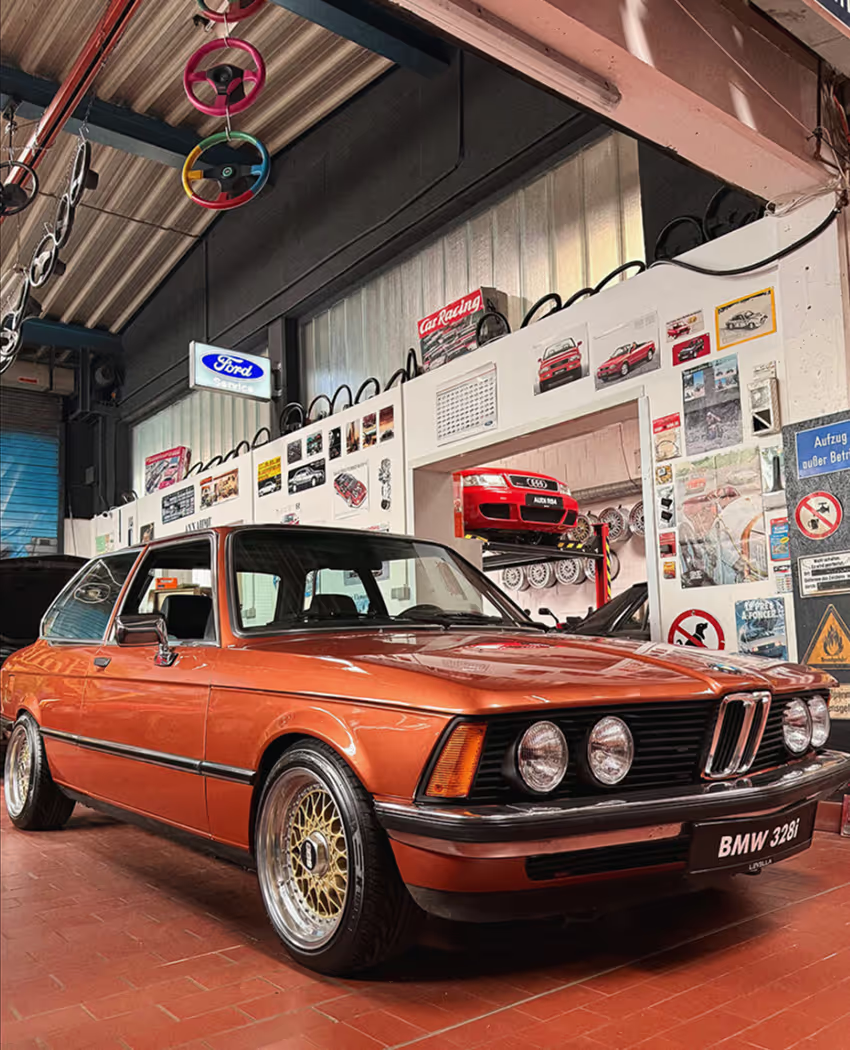
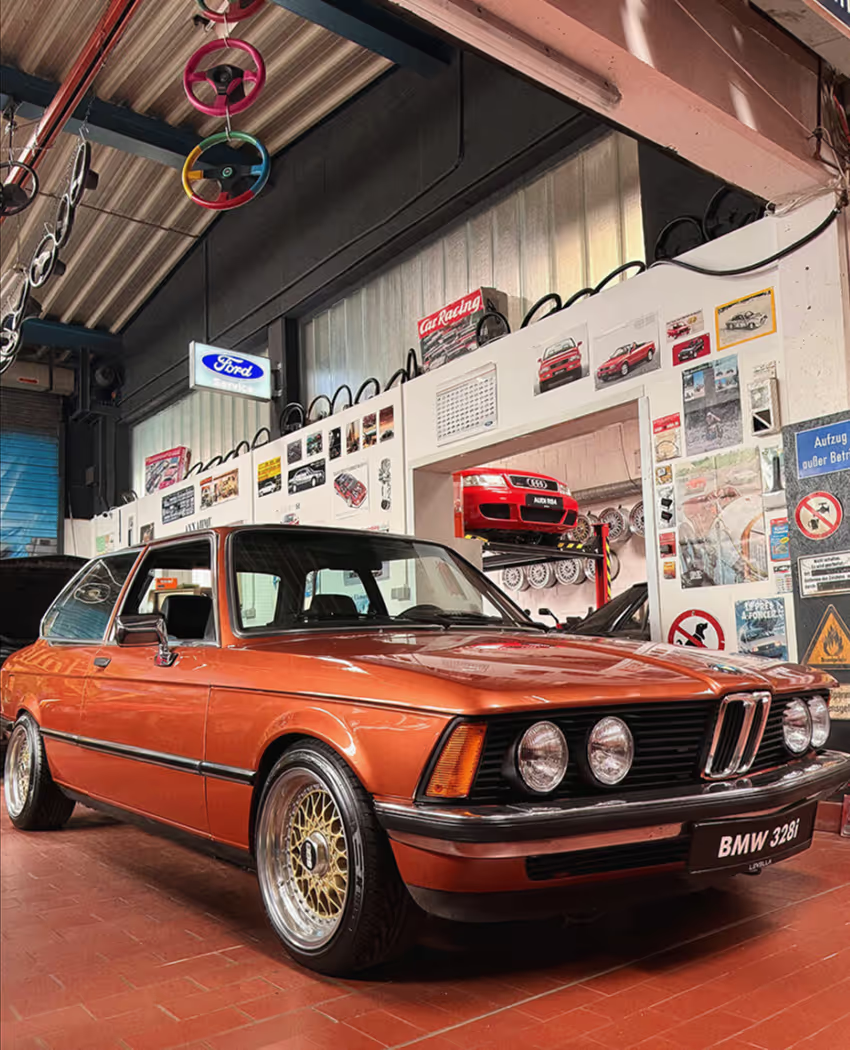
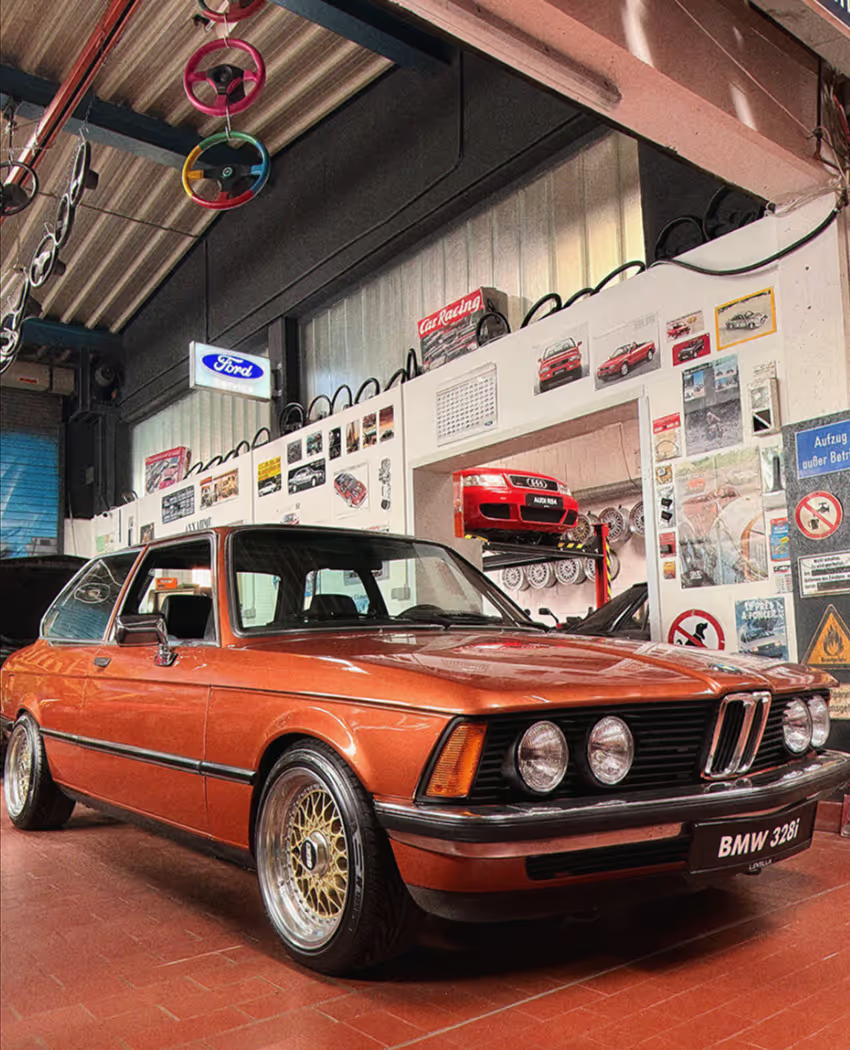
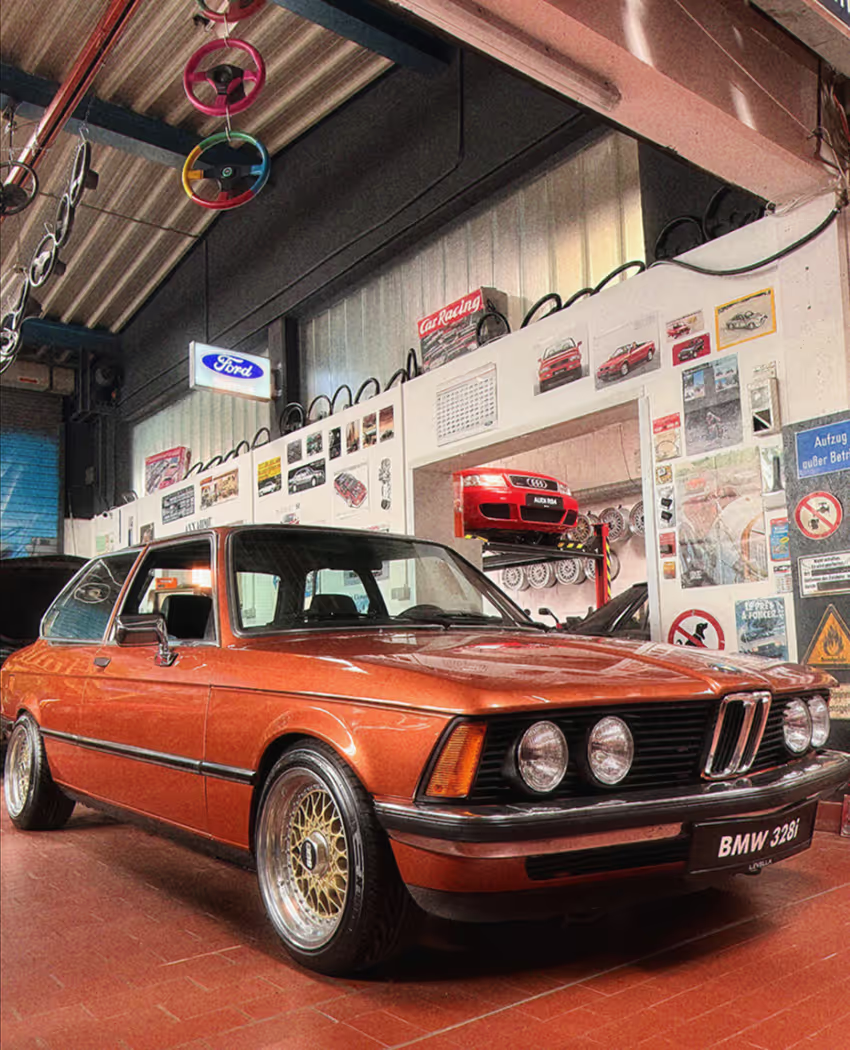
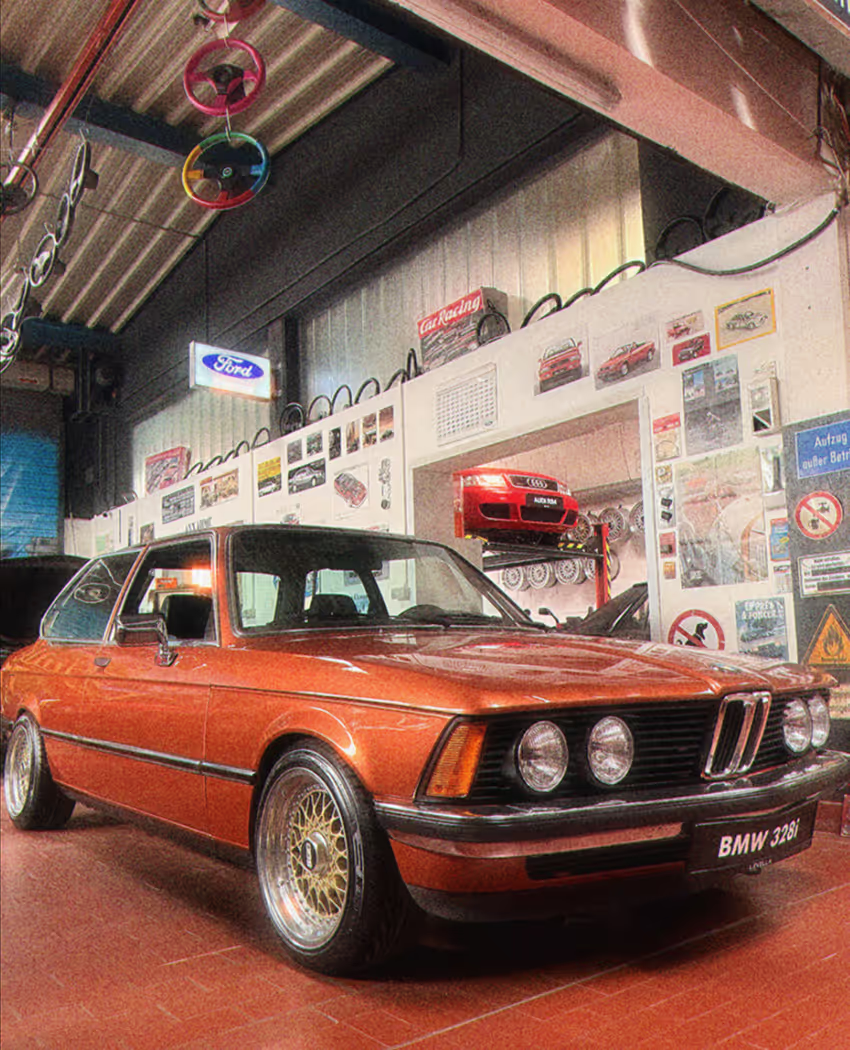
The tone setting adds additional contrast and saturation adjustments, emphasising or softening the photo.
Neutral is the default setting which has the iPhone cameras standard dynamic range. Softer, Refined, Faded and Expired generally reduce contrast and punch where as Dynamic, Ultra, Pro and Crush go in the opposite direction.
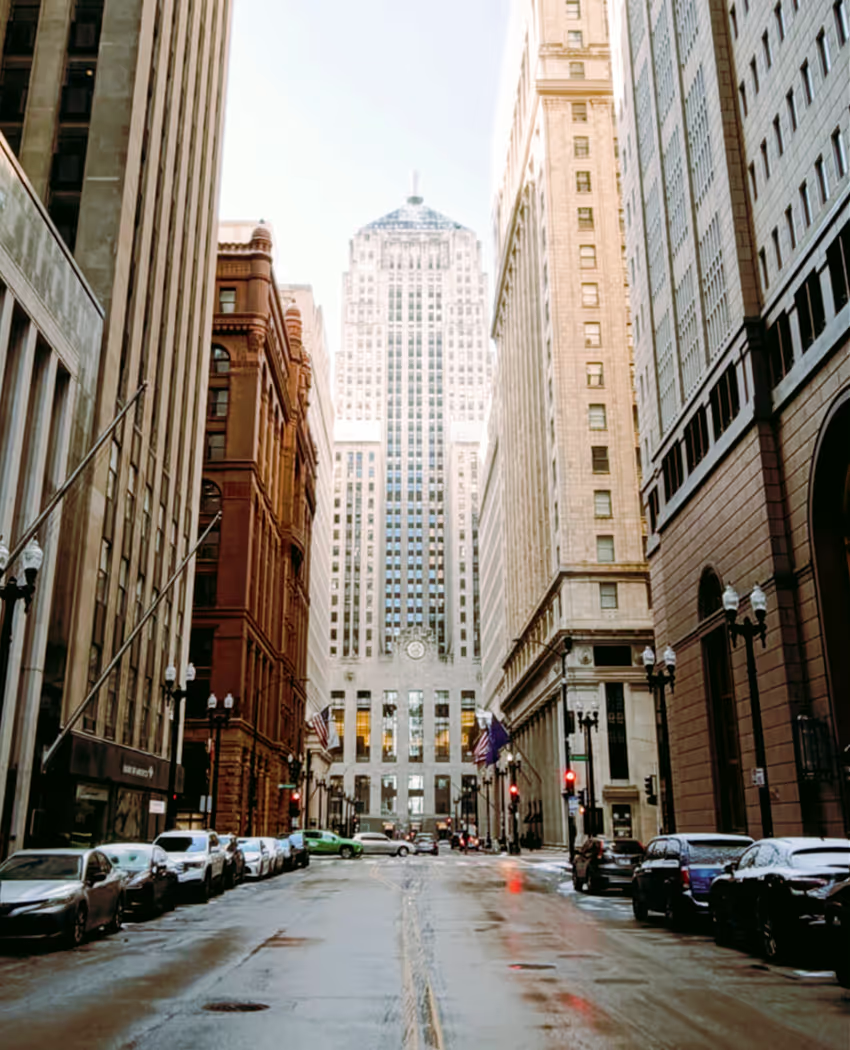
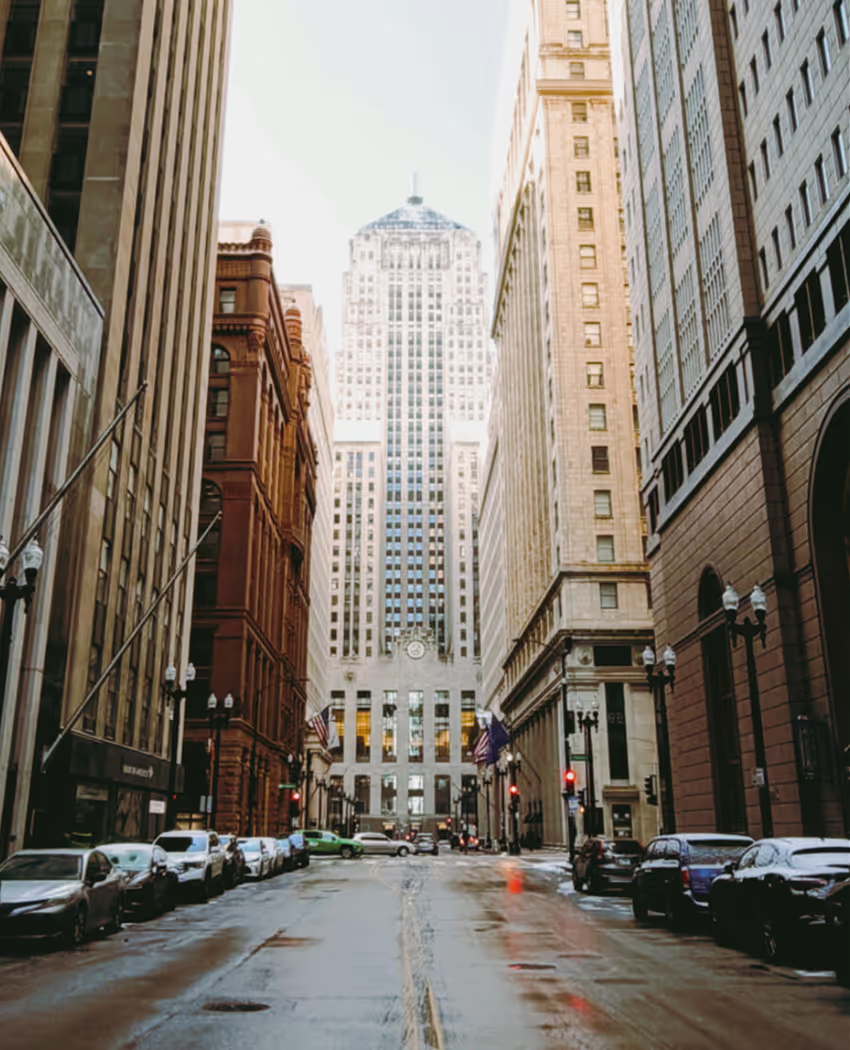
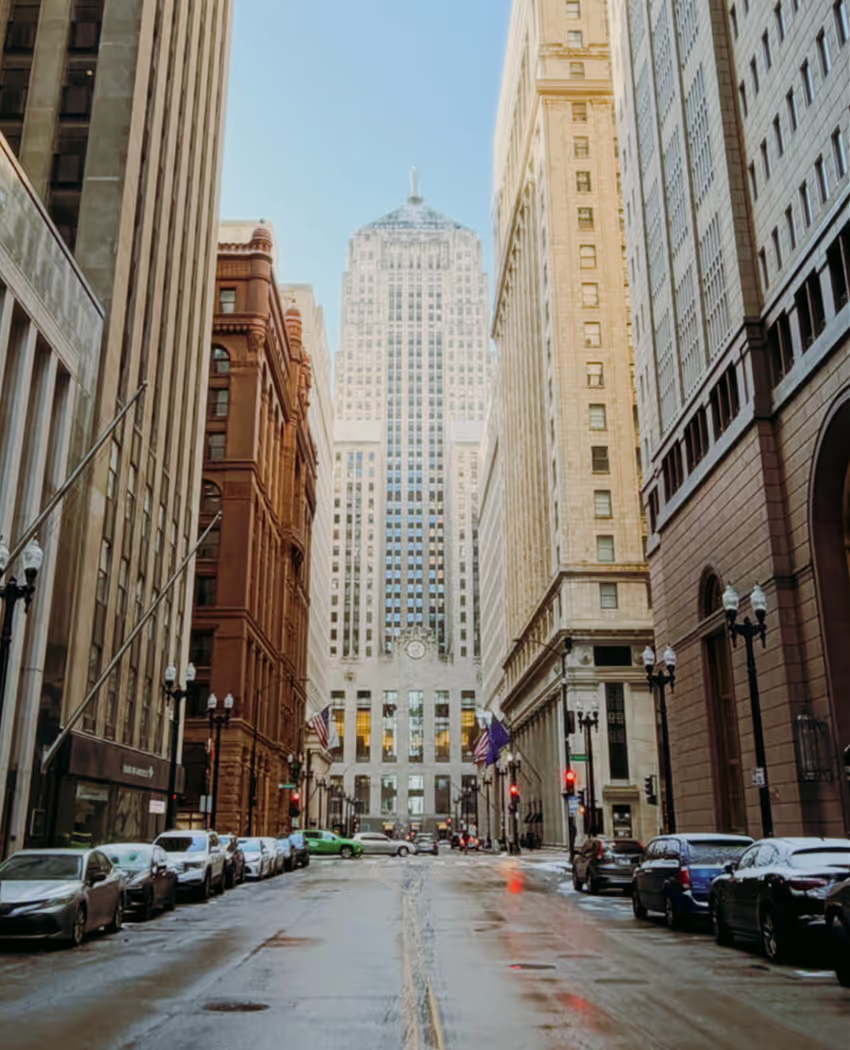
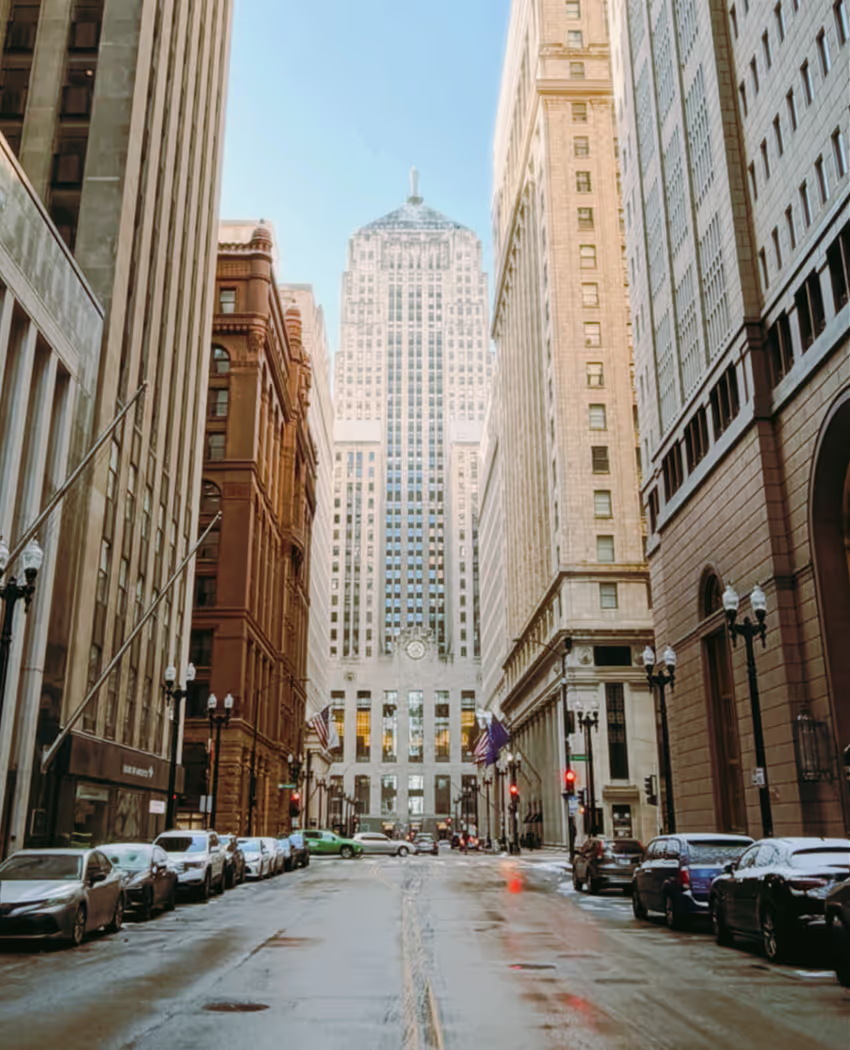
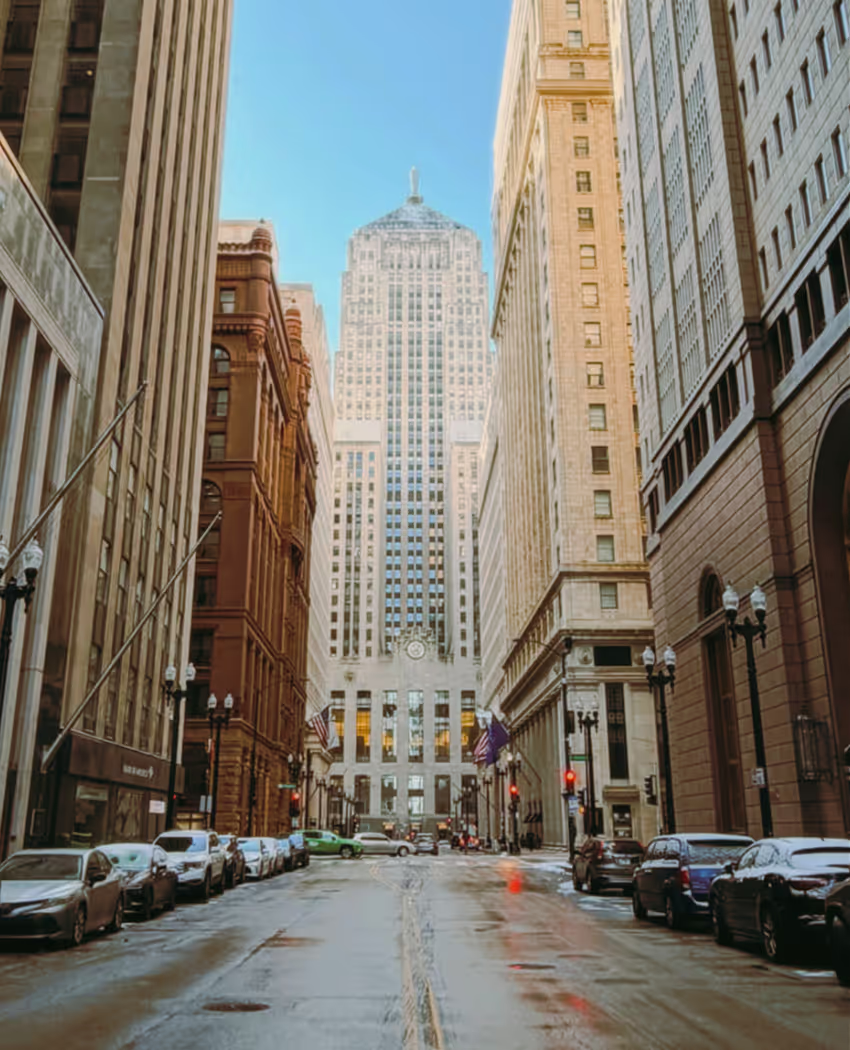
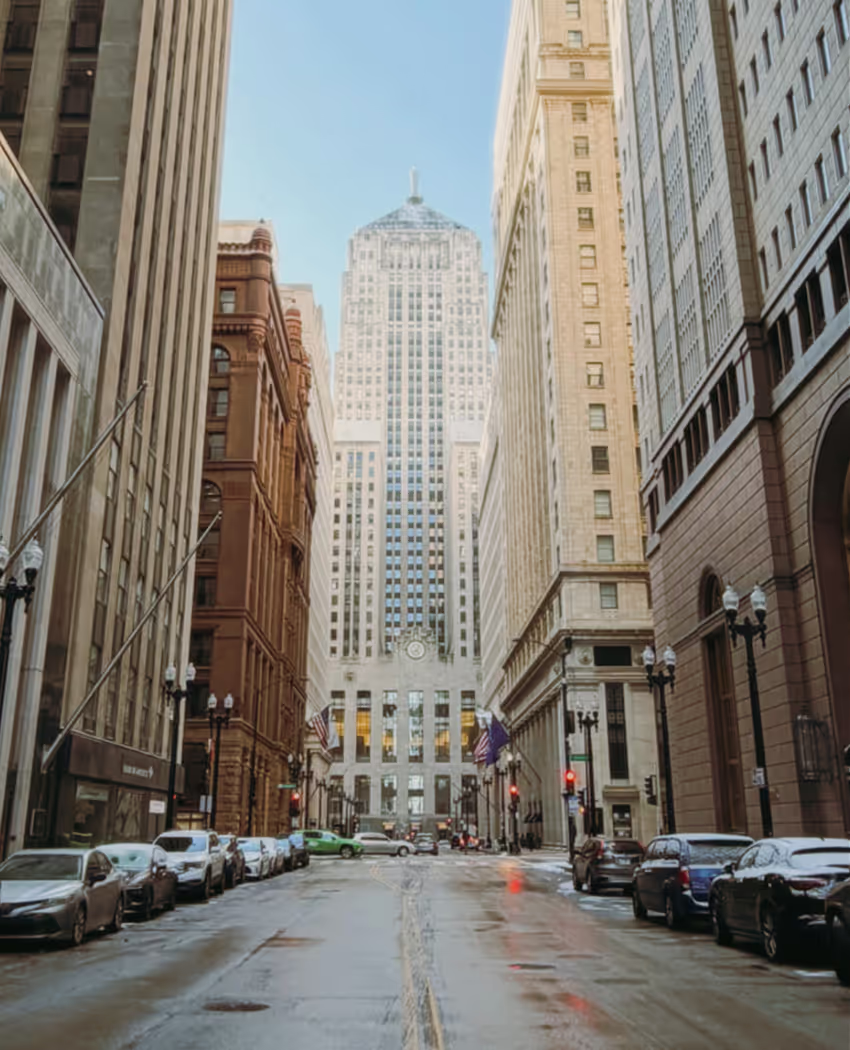
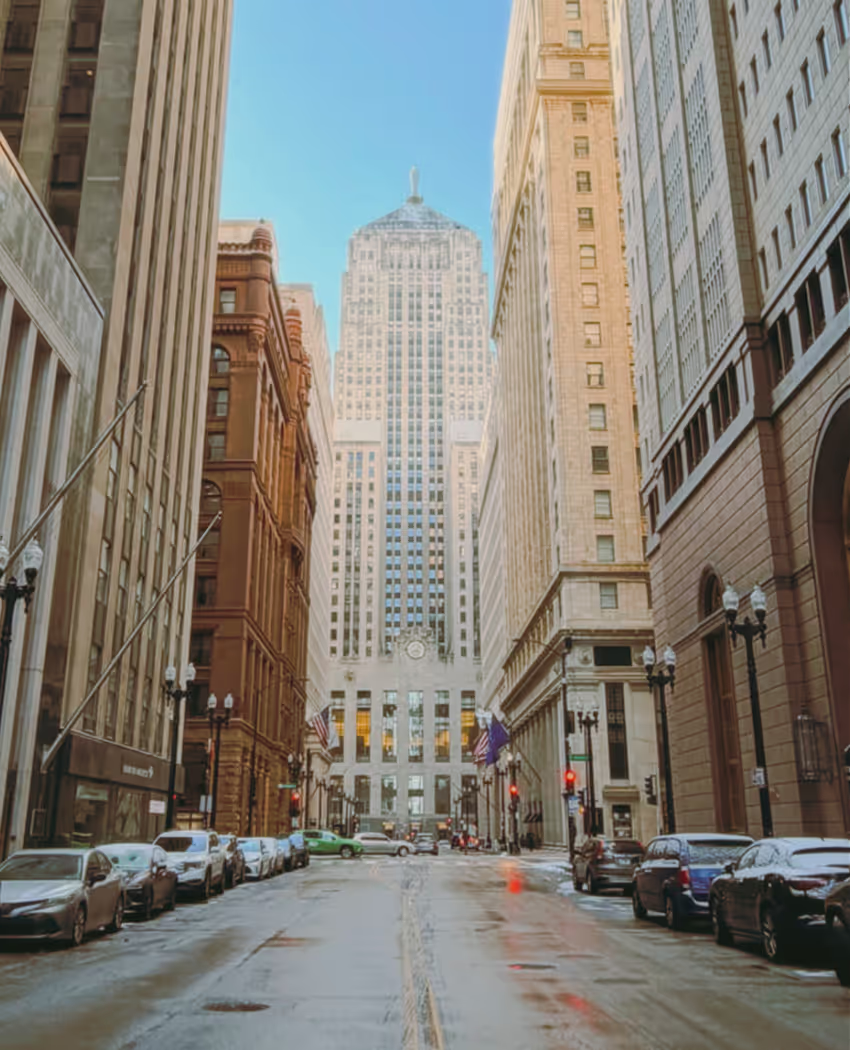
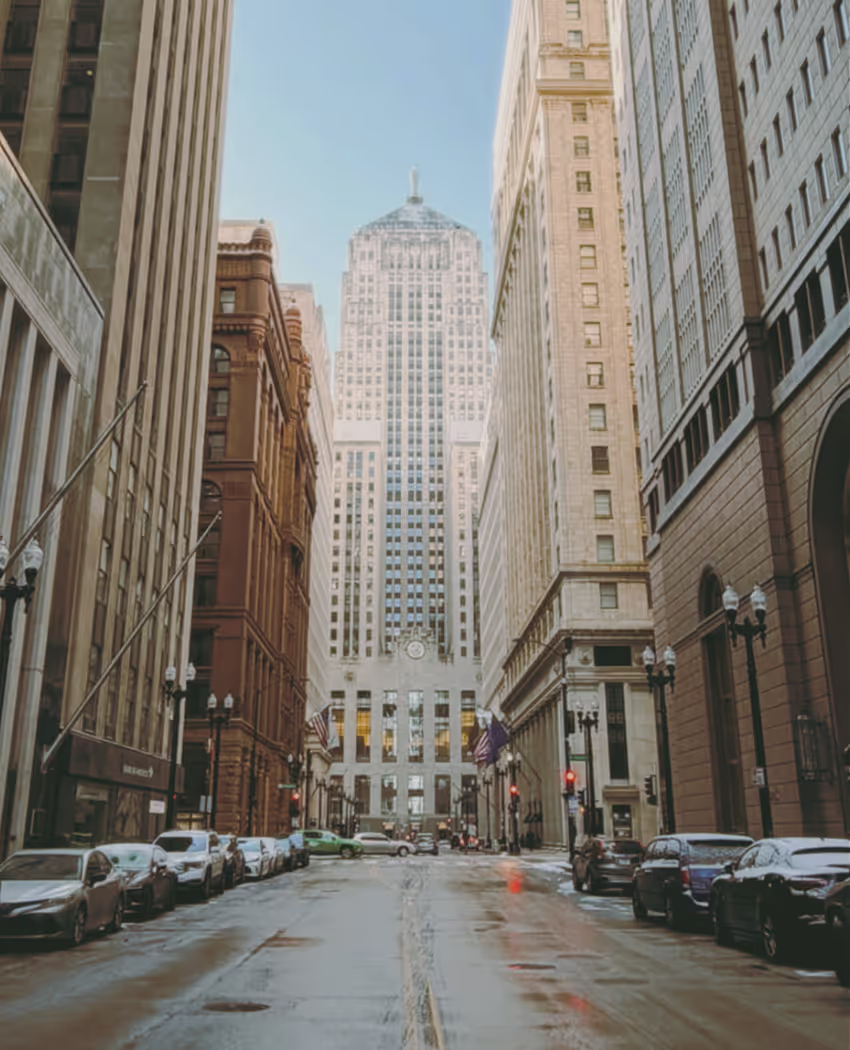
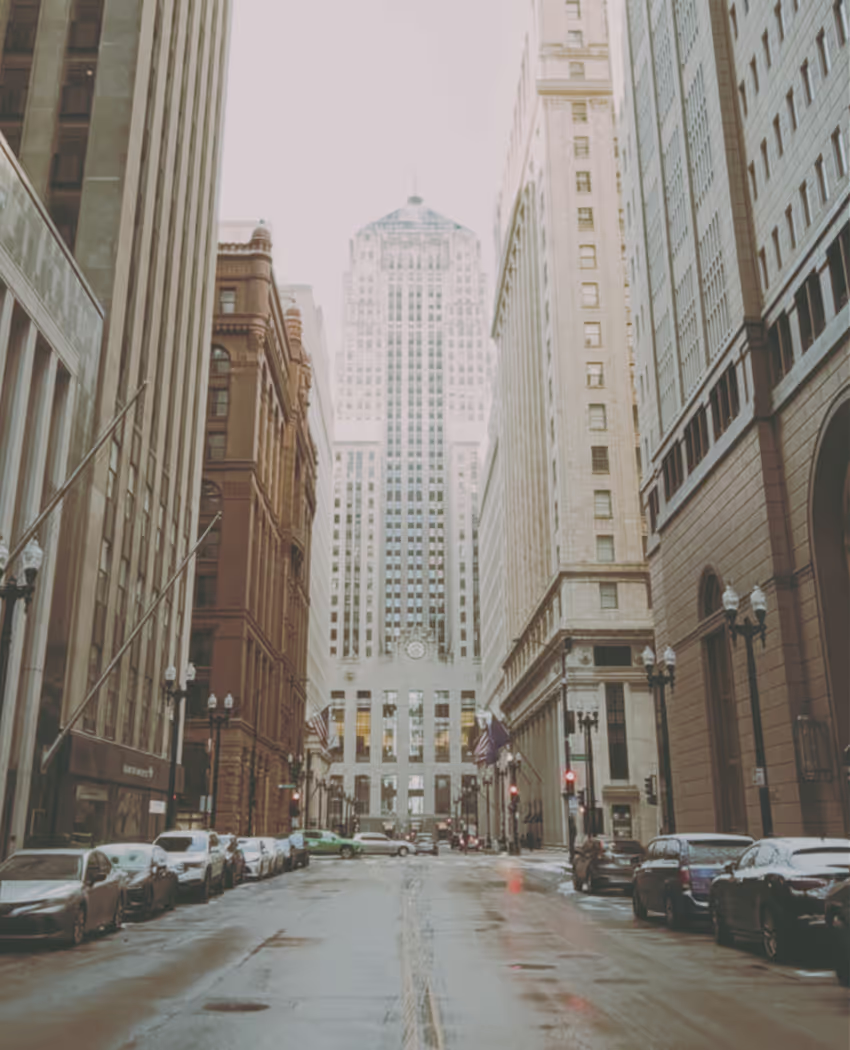
This setting allows you to choose between a wider or narrower dynamic range. A wider range allows for more detail in bright and dark areas, while a narrower range will result in under and over exposed areas and darker shadows. The default setting is High, but "real" film typically has a lower range, depending on the type of film stock.
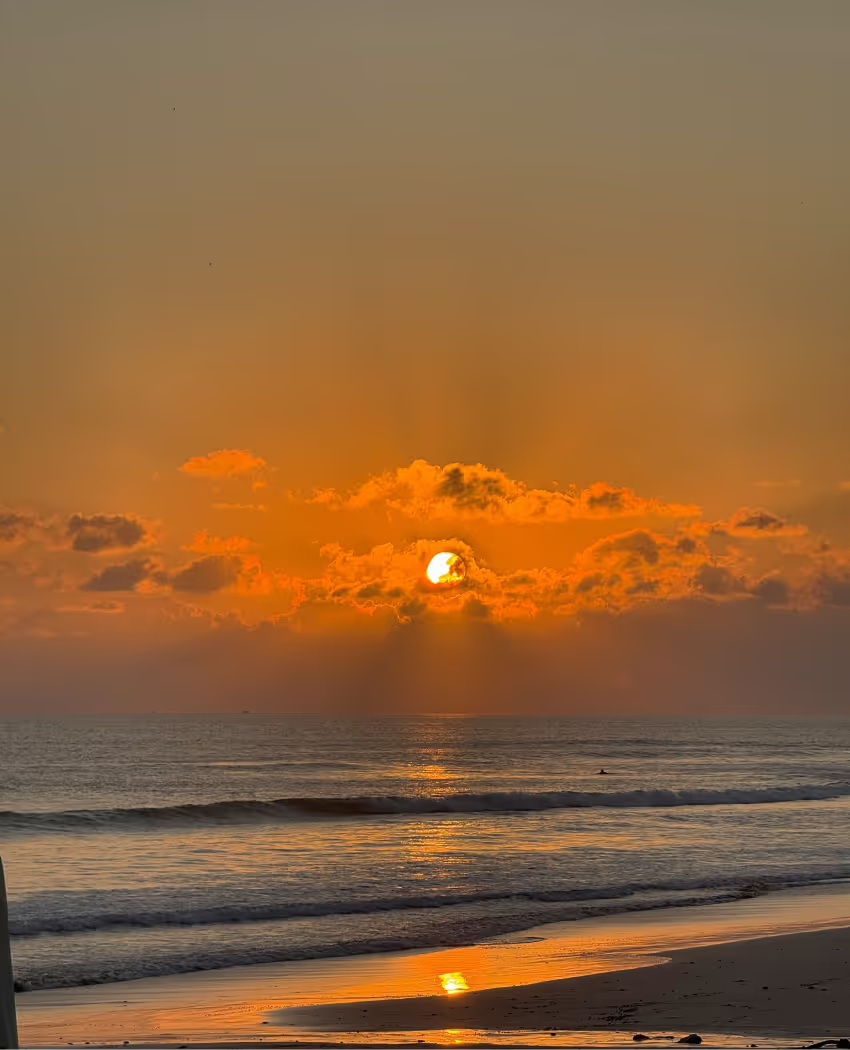
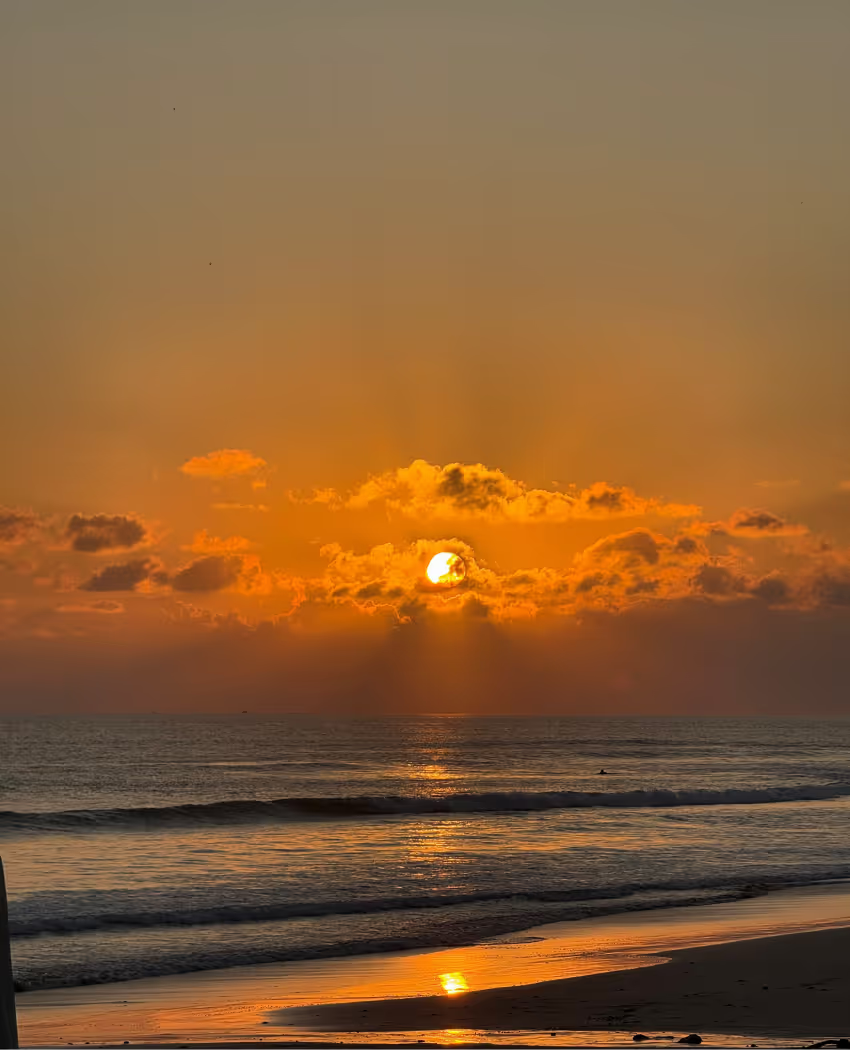
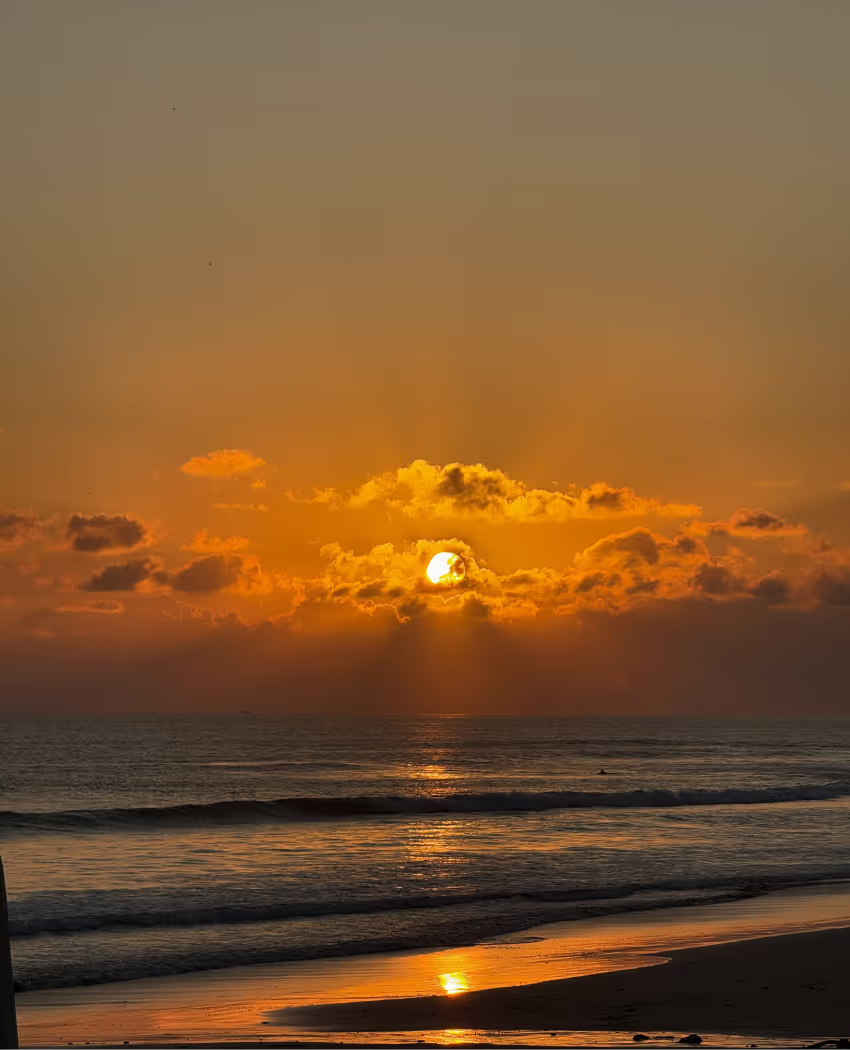
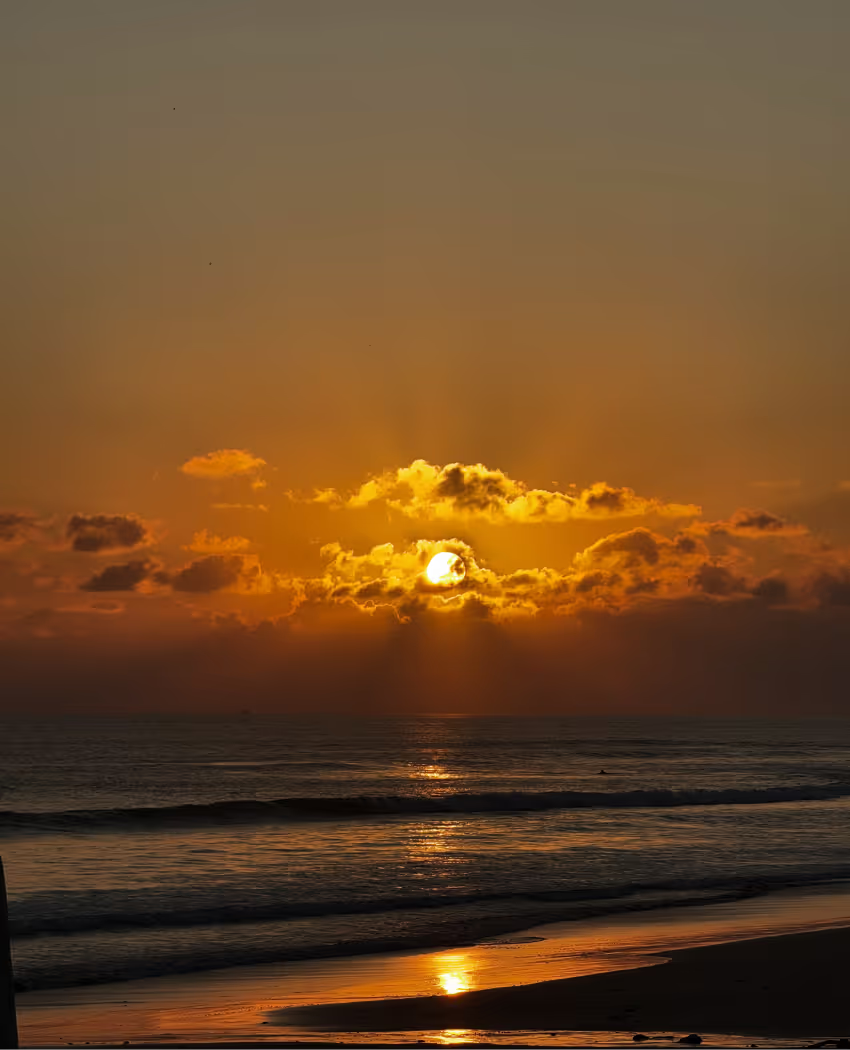
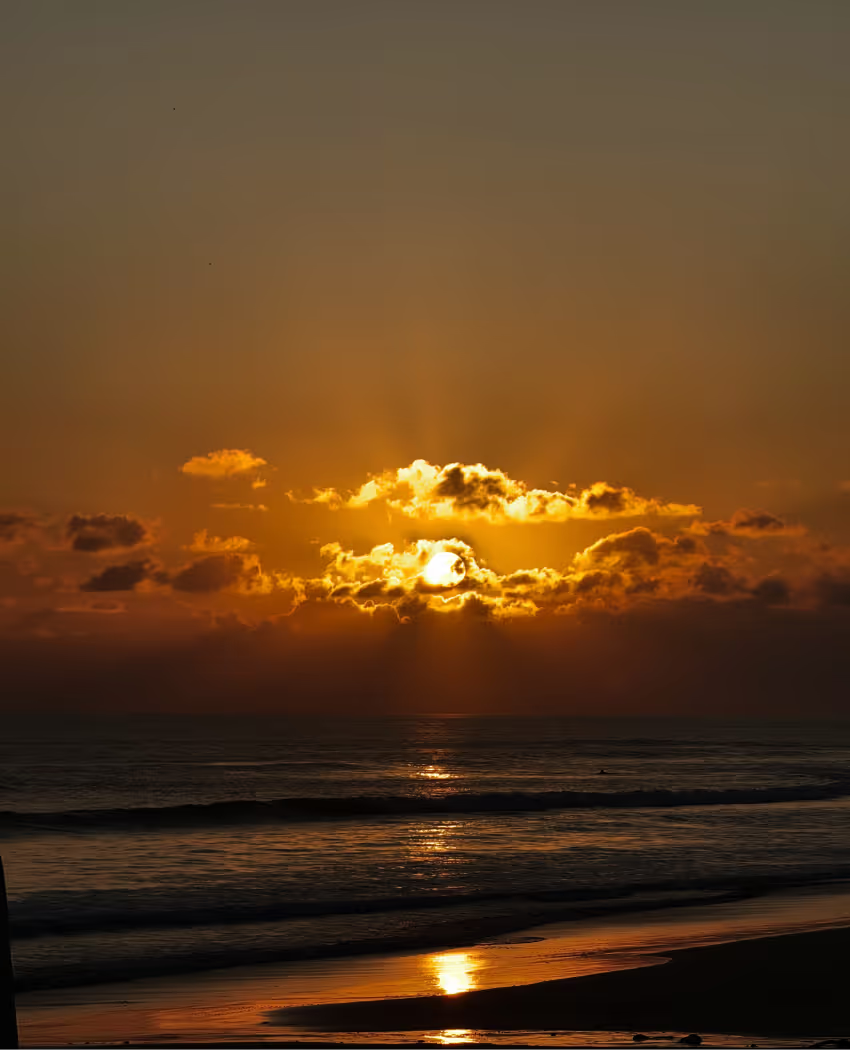
Modern iPhones apply strong sharpening during image processing, which produces an unatural and artificial look.
In mood.camera, Pro devices capture photos in ProRAW, allowing sharpening to be reduced within the ProRAW file before processing. On non-Pro devices, where images are captured as JPEG and the sharpening is baked in, a custom unsharpening filter is applied instead. This gently softens overly sharp edges and reduces harsh detail, bringing images closer to a more natural, filmic look.
There are 7 unique blend modes, each with a distinct look for creating different effects. For inspiration and ideas head over to this page.
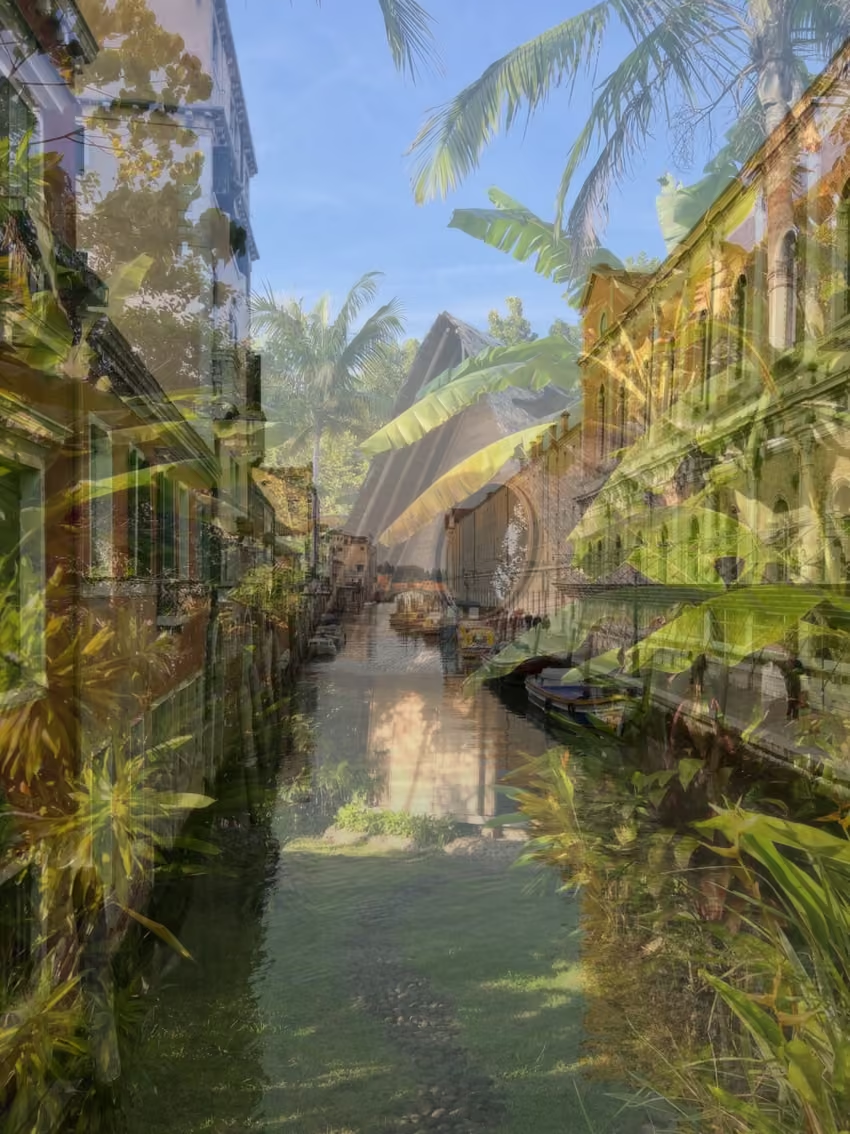
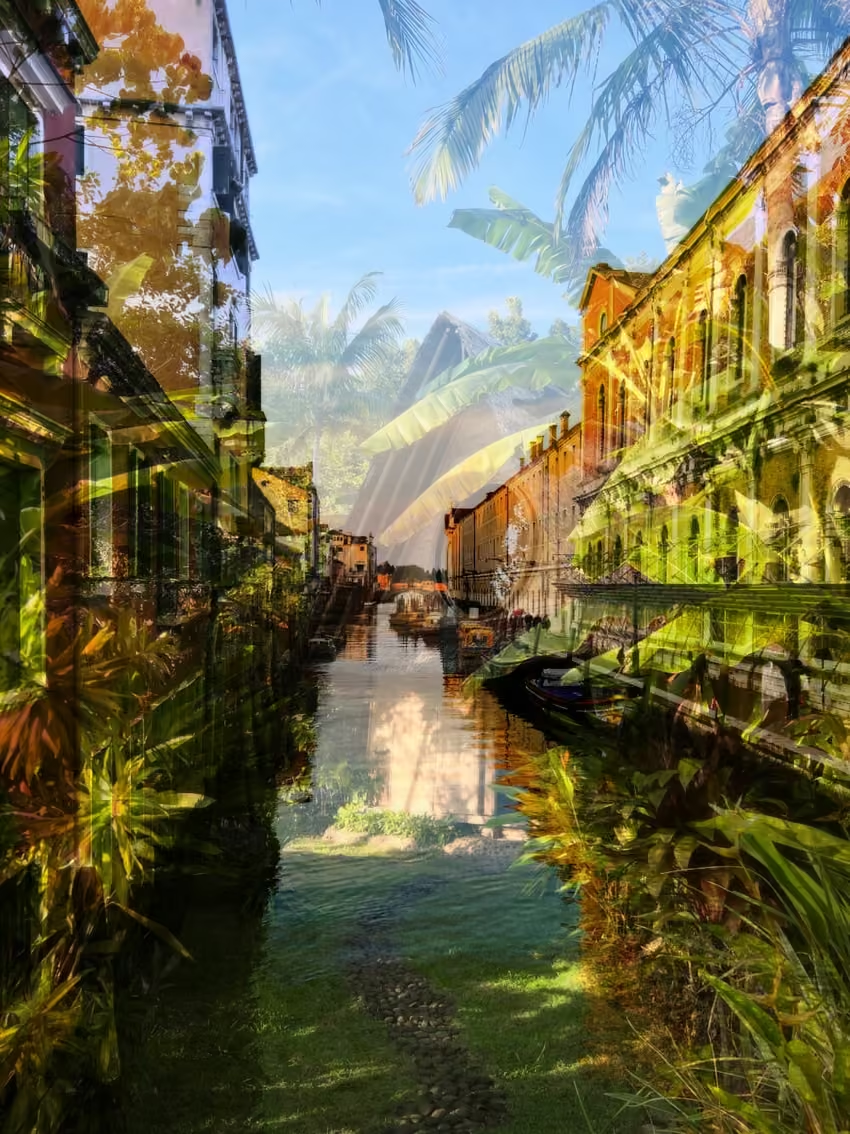
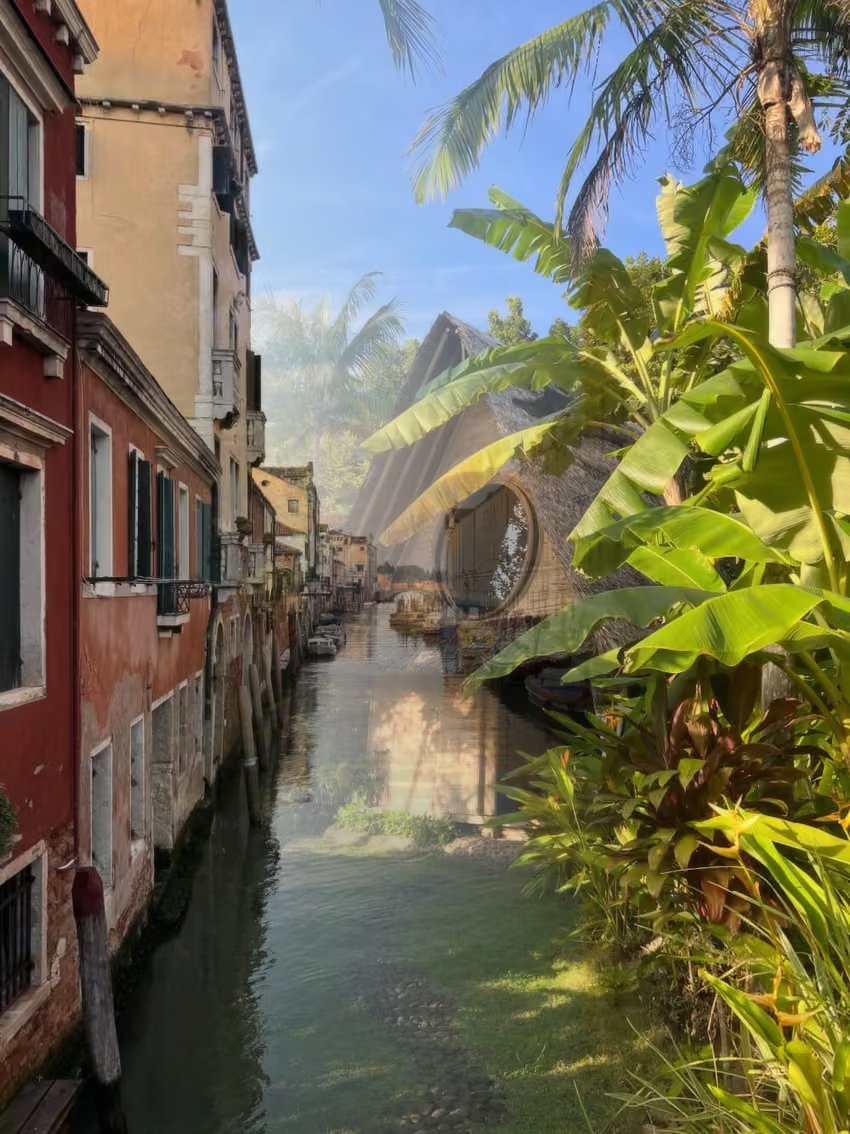
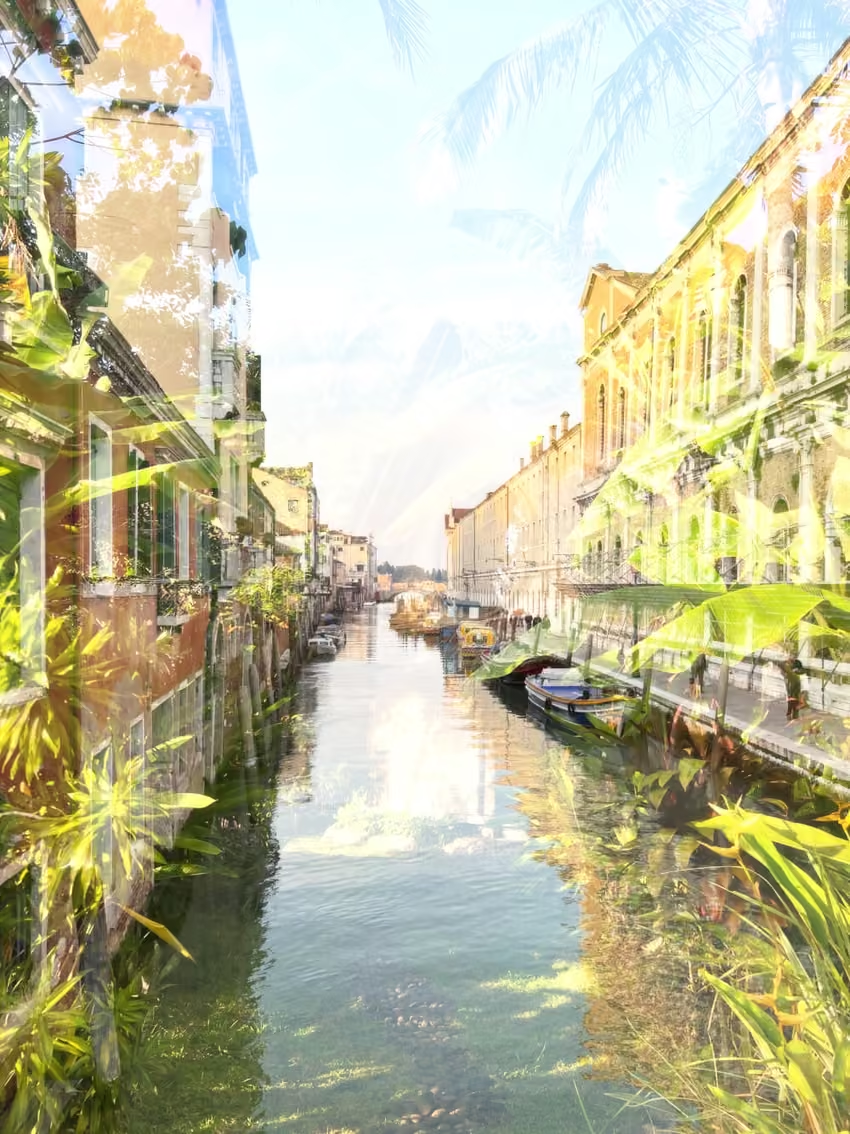
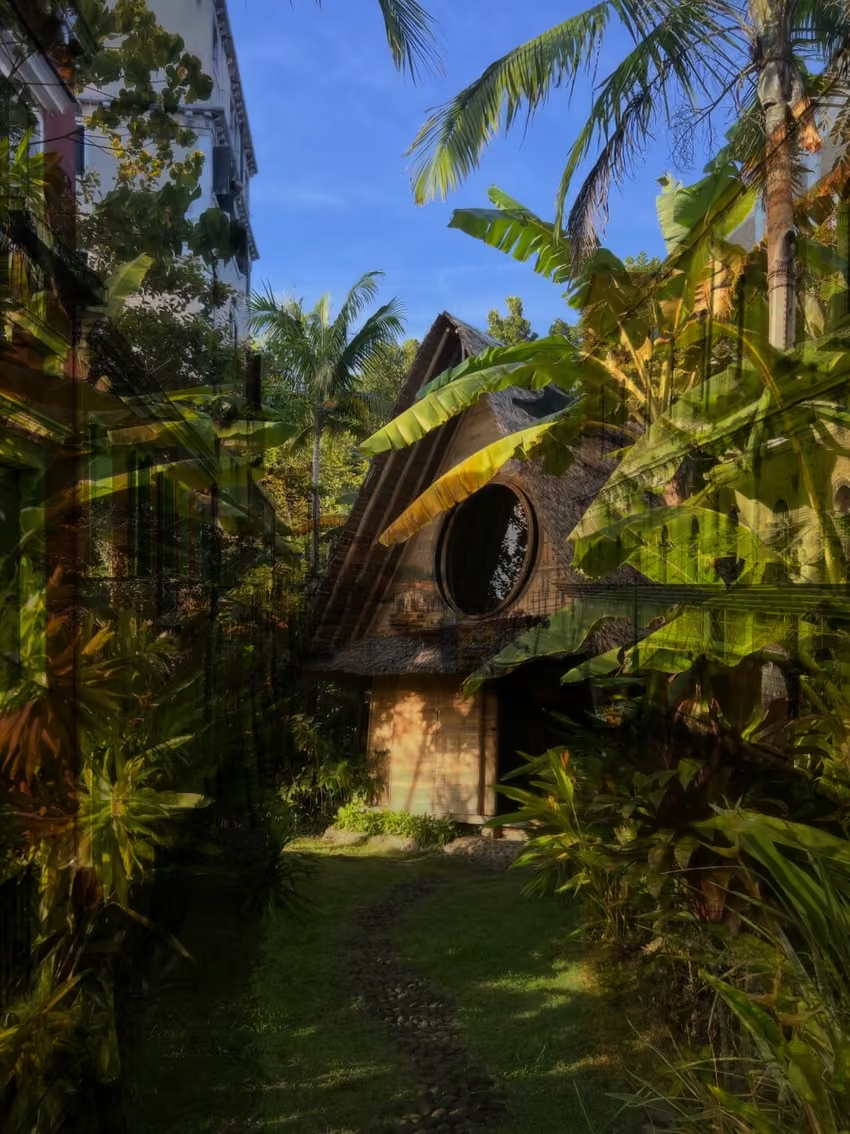
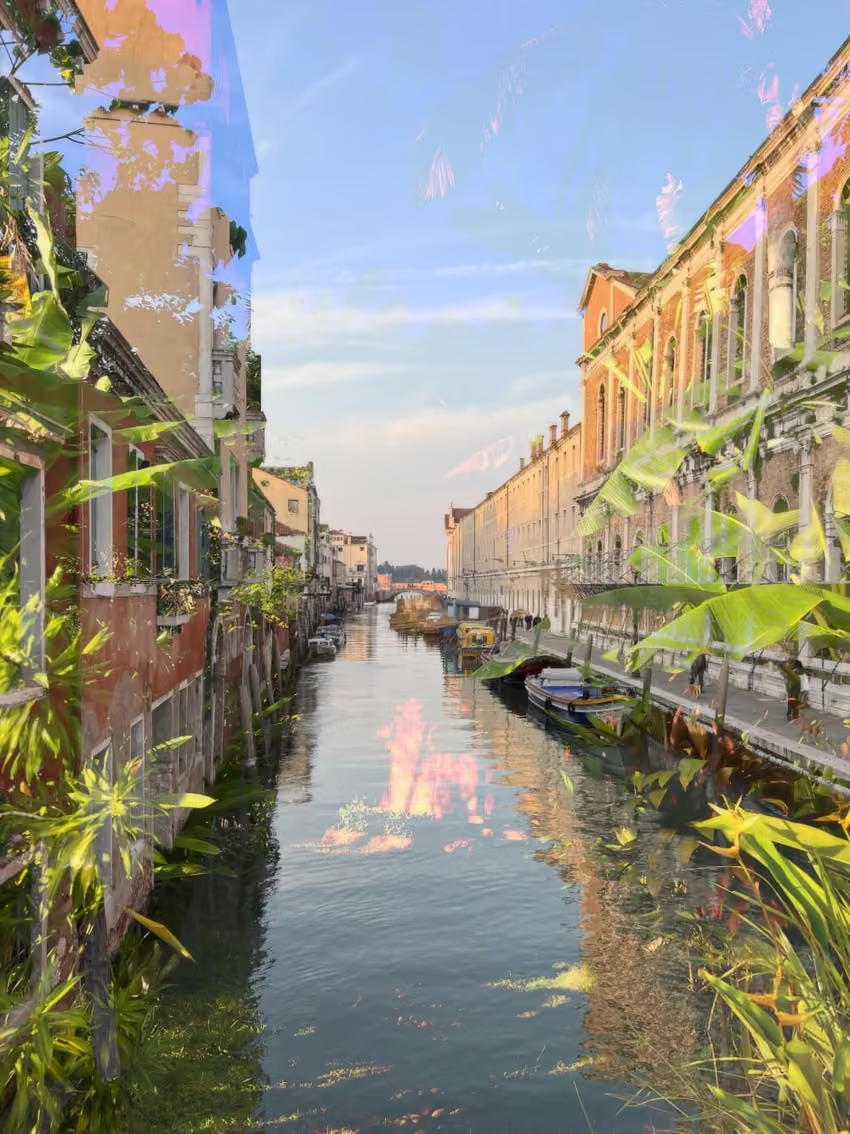
Random mode selects a different combination of Emulation, Quality and Tone, every time you take a photo. This is a great way to explore new styles or if you would like to really embrace letting go of control!
If you would like to reduce the breadth of styles that appear in random mode, press the Customise button beneath the Random icon on the emulation selection screen.
Maintaining consistent skin tones across different emulations can be challenging, due to the iPhone’s built-in skin tone adjustments and the wide range of natural skin tones.
When set to AUTO, this is only applied when a face is detected in the image. Please note the AUTO setting is only available on devices running iOS 18 or newer. Find this setting in Photo Settings.
Skin tone protection reduces how much the emulation is applied to skin tones in your photo. This produces more natural skin tones, however, be aware that it can also impact other areas of the photo.
If you want more control over the emulation, you can create custom presets which exposes advanced settings to dial in a more specific look.
To create a custom preset, scroll all the way to the left of the preset selector and press the "+" button, or press "Manage" in the top left and select "Create custom preset".
© copyright mood.camera 2024